The Workday release on Saturday, September 20 was successfully completed. This release included improvements to common Absence tasks, an easier way to save some frequently-used reports and tasks, and new functionality and tools for staff and students who use Workday Student as well as other minor changes.
See a summary of changes below, or learn more about Workday releases.
Workday 2025 Release 2 (September 2025)
Note: Details below are subject to change. Visit the Workday Knowledge Base for the latest information.
Updated Absence Tasks
When requesting and managing absences, faculty and staff as well as managers will see more information in easily accessible formats. Additionally, some Absence tasks are renamed for consistency and clarity.
Request Absence
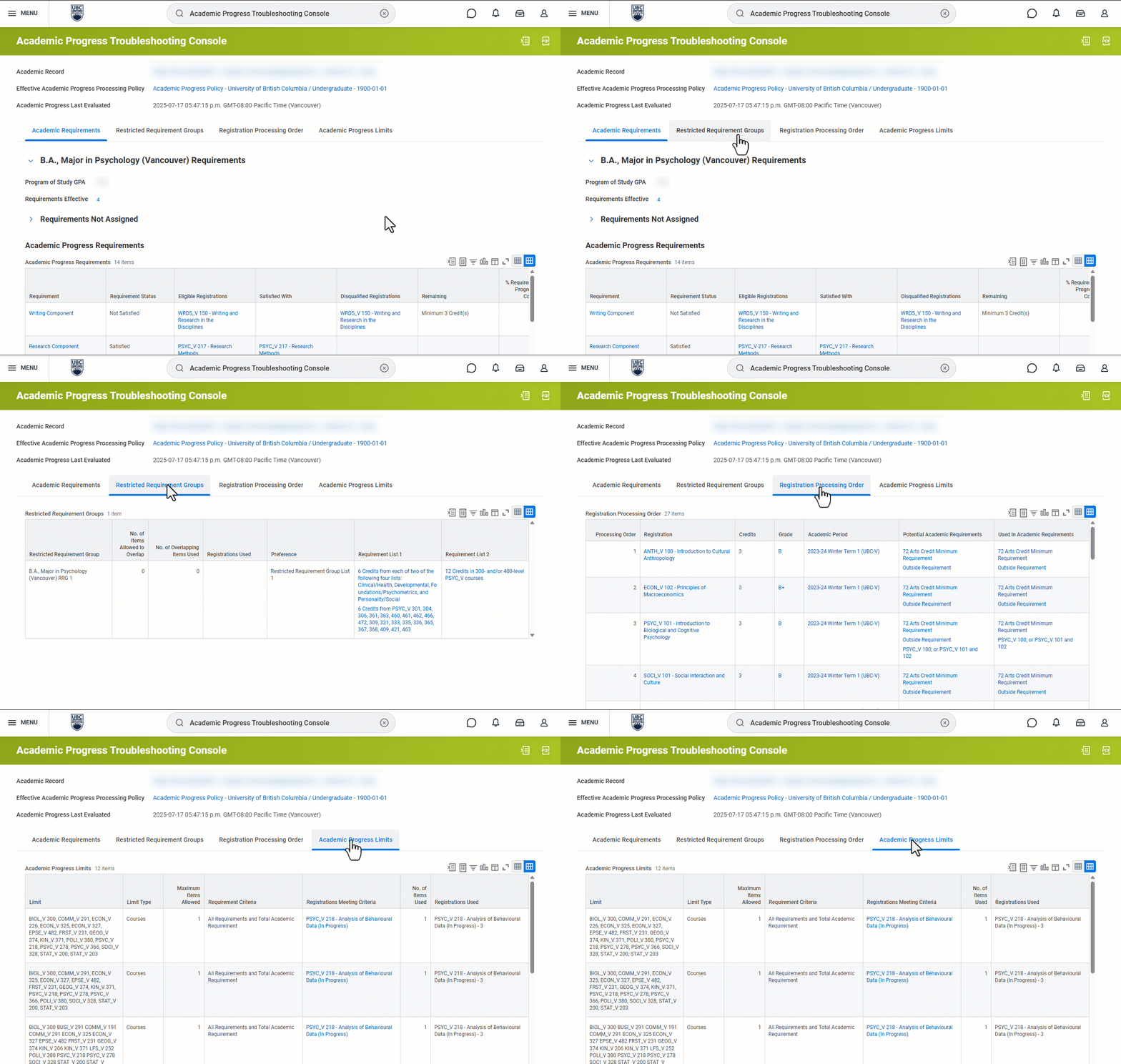
The Request Absence task in Workday now opens in a pop-up window which has several helpful features, including:
- A small calendar view to select dates.
- A quick link to view your available absence balance.
- An option to quickly apply amount of hours to all selected dates or edit individual days.
- Pending, approved or sent back absence requests are now easier to identify on the calendar through colour-coding and solid or broken lines.
- Instructional information regarding UBC Absence Policies now appears before a request is submitted.
Additionally, managers and HR administrators now see a link (Request on Behalf Of) to submit an absence request for team members they supervise or support.
Note: Submitted absence requests cannot be changed through this pop-up calendar view; instead, use the Manage Absence (details below) task for editing.
Manage Absence
Manage Absence (previously Correct My Absence) provides a full-page calendar view where submitted absences, including pending or approved, can be edited.
Manage Absence lists absence balances and previous and upcoming absence requests in a side bar for quick reference, and consolidates absence management actions into a single Actions dropdown menu.
Additionally, managers and HR administrators now see an option to switch between team members (Switch Worker) when viewing the calendar.
Absence Terminology and Delegations
As part of this update, some tasks have been renamed for clarity and consistency. For example, Request Time Off and Request Leave of Absence are now consolidated into a single term: Request Absence.
When searching for Absence tasks and setting up delegations, be sure to use the new task names.
Bookmark Tasks for Fast Access
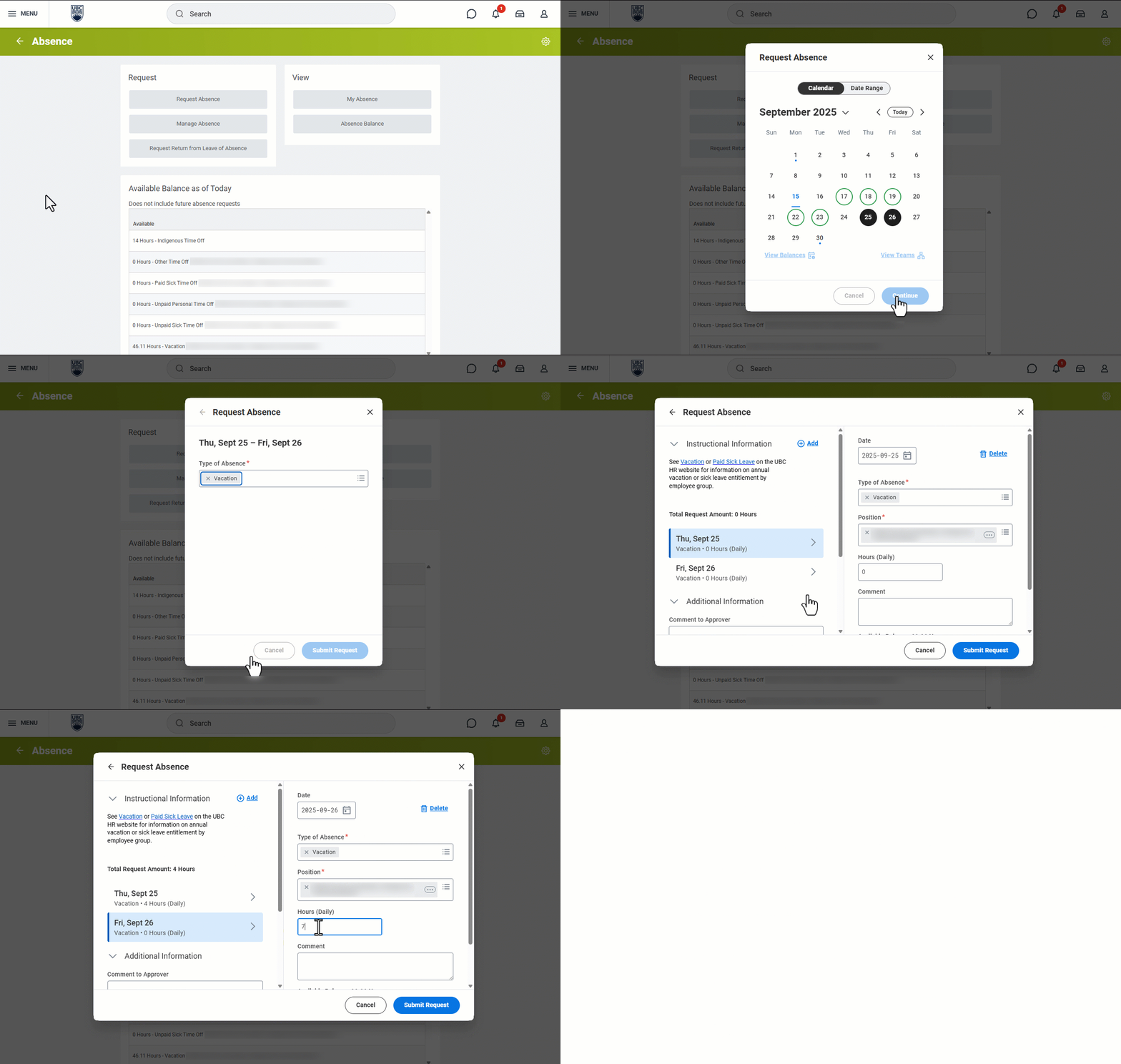
On many Workday tasks, you will now have the option to add the task to your Saved page, which is accessible from the Global Navigation Menu. This gives faculty, staff, and students an easy way to bookmark a task without having to go through the menu or lose their progress on the current task.
Tasks you save using this feature will appear under the Favorites section of your Saved page. This option will appear on most Workday tasks that are accessible using search (e.g. Create Expense Report).
Note: This feature is to help you quickly find and access common tasks, but will not save your progress or specific details of a task. For example, you can use this feature to save Create an Expense Report as a task, but it won’t create a draft of the expense report you are currently working on or save details on that report.
Expanded Alerts on Saved Schedules for Students and Staff saved
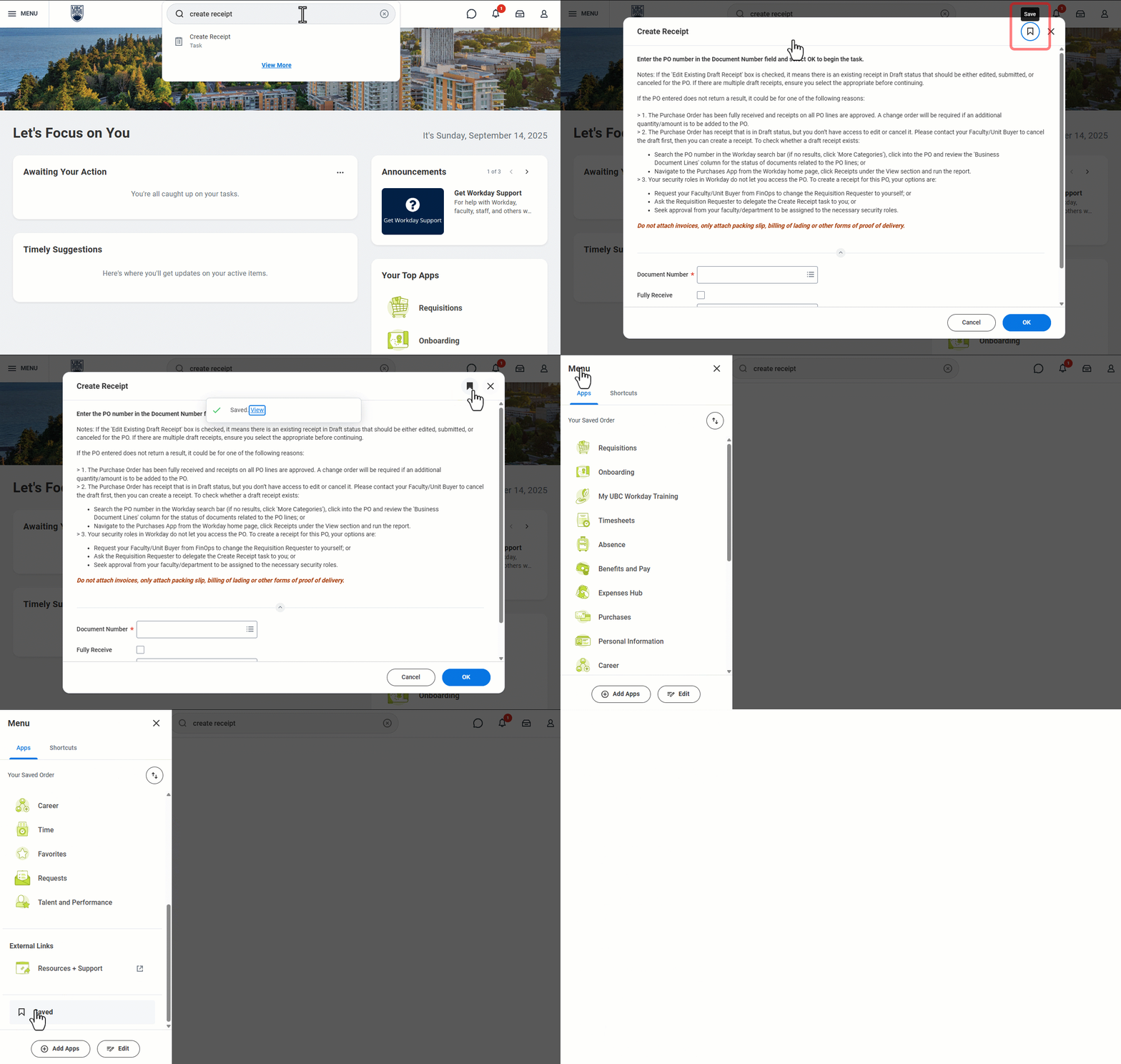
When viewing saved schedules, both students and staff will see additional information that can help them identify and address potential issues before registration begins.
On the View My Saved Schedule report (used by students) and the View Saved Schedule for Student report (used by staff), the alerts pop-up window will now include a description of each alert category.
Also, Workday has added new alerts that will appear when there is an issue with capacity.
Note: The Alerts column only appears when there is a possible registration barrier, such as the student having already taken the course the maximum number of times. It will show the number of alerts.
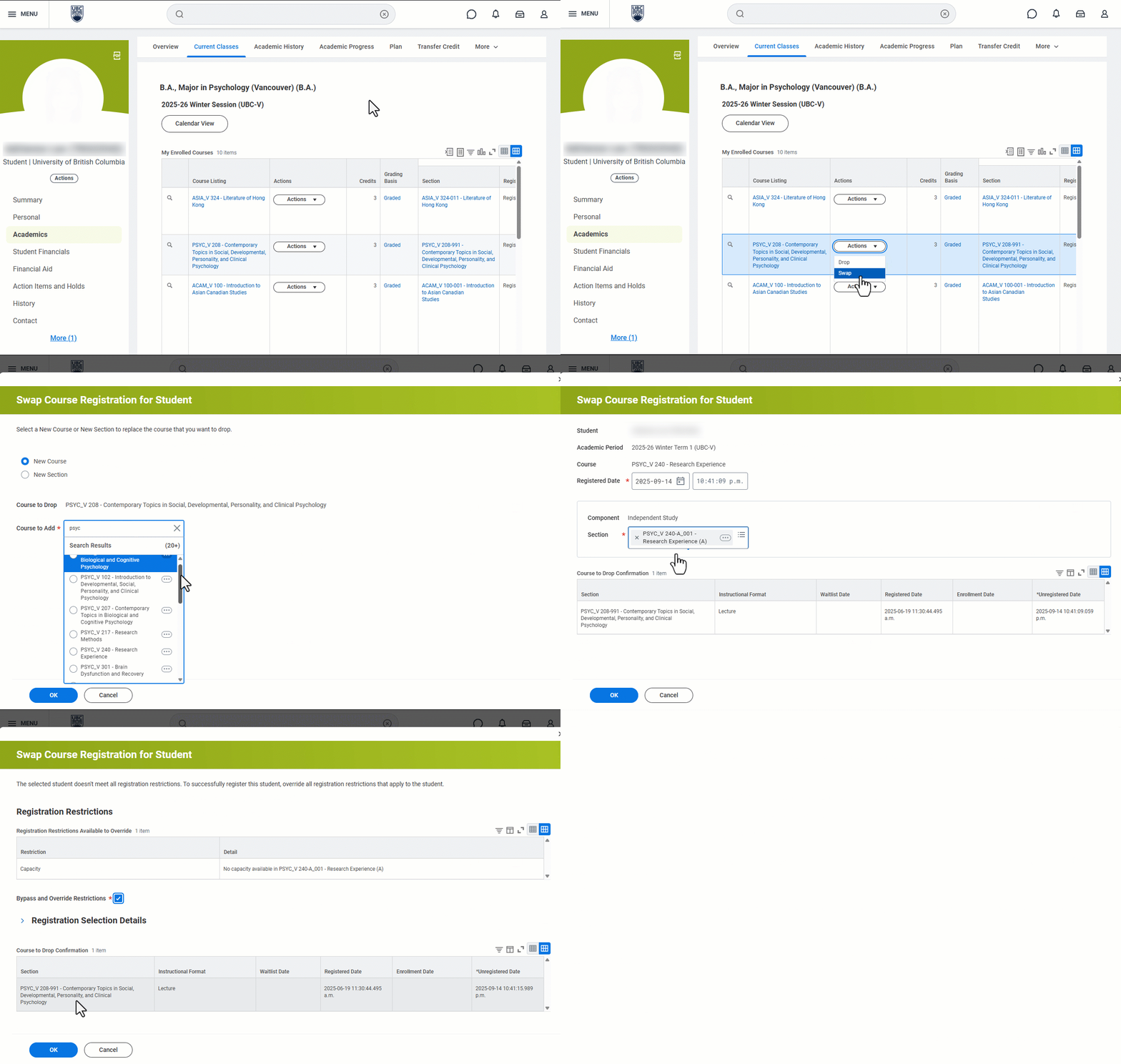
Ability to Swap Courses Added for Administrators swap
Student administrators who assist with student registration will now be able to swap a course (drop a course and add a new course through one task) on behalf of a student. This functionality makes it easier for administrators and will help prevent registration issues caused by trying to drop and add a course separately. It also enables administrators to swap courses for students instead of asking them to.
Administrators can swap a current course for a different course or a different section of the same course. They will also be alerted if one of the courses being swapped has a co-requisite or pre-requisite.
Courses can only be swapped if they are in the same term, and if it’s before the add/drop deadline. Some courses that have non-graded components (e.g. clustered lecture, lab, discussion group) can’t be swapped.
If swapping is not possible, administrators will need to add and drop each of the courses separately.
Note: Students already had the ability to swap courses themselves.
New Tool to Troubleshoot Academic Progress Issues console
Advisors and other staff who help support and monitor students’ academic progress now have a new way to examine academic progress of individual students.
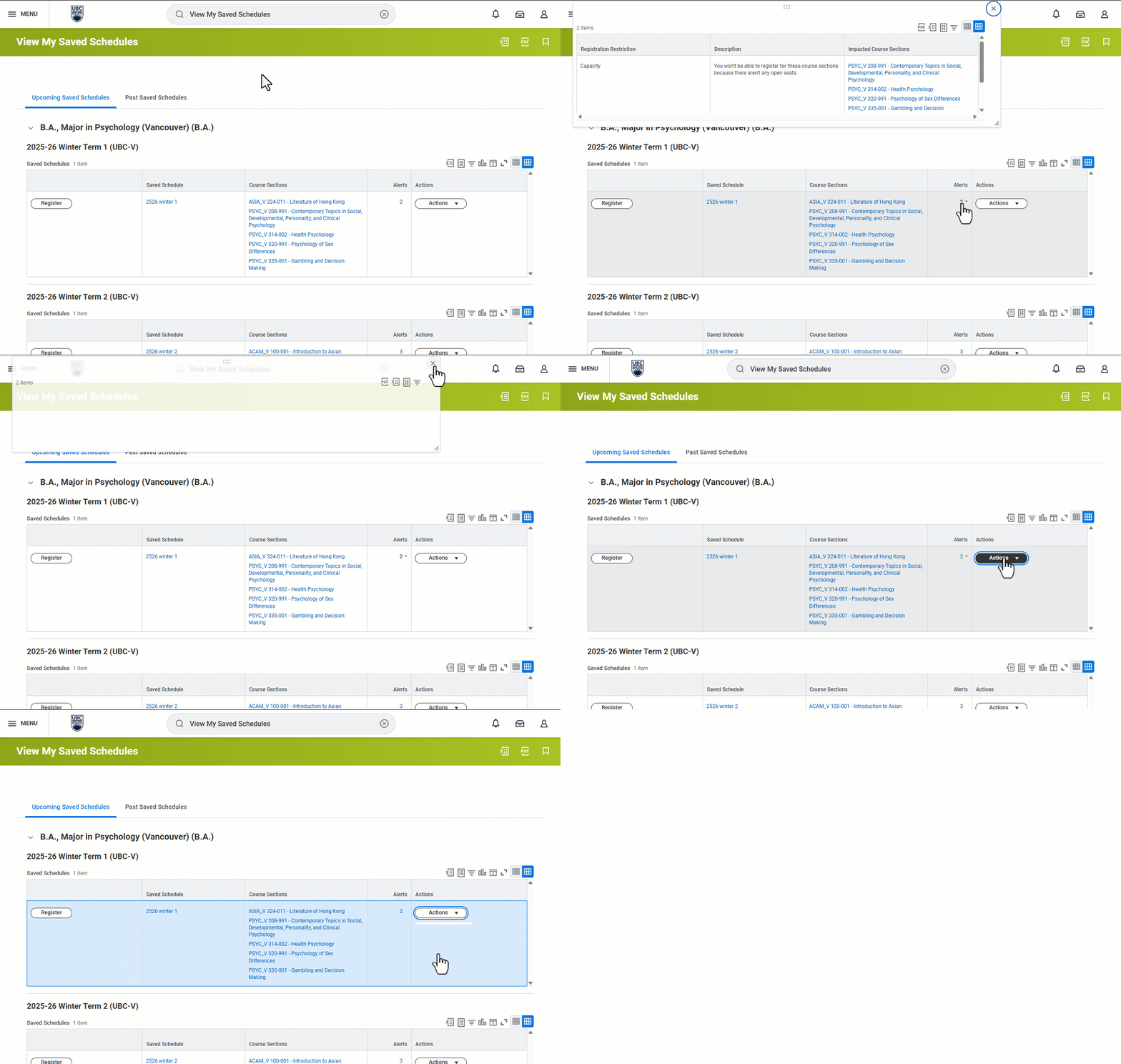
The Academic Progress Troubleshooting Console offers more insight into how a student’s courses are applied to their academic requirements in Workday. It has four tabs, which provide information about:
- Academic requirements, including which courses have been applied to which requirements and why certain courses apply or don’t apply to specific requirements based on UBC’s criteria.
- Restricted requirement groups and associated eligibility rules (to prevent double-counting).
- Order in which course registrations are applied towards requirements and how they are applied.
- Academic progress limits and the courses applied to each limit.
Staff will see key student information (name, student ID, academic unit, academic level, primary program of study declare date, and academic record status) and a link to the academic progress policy.
When running this report for a student with more than one academic record (e.g. dual degree student), select which academic record you want to examine.
Note: When accessing the console, staff will be reminded to run the Launch Academic Progress Evaluation task first, in order to make sure the information shown is up to date.